
3
Technical Setup & Digital Literacy
Technical Setup & Digital Literacy
Մասին
This activity builds the technical foundation of the Co-Creating International Youth Spaces in Roblox project, turning a standard hardware setup into an intentional learning moment in digital safety and resource management.
1. How the learning happens: From Players to Creators
Instead of youth workers handling all the technical setup in isolation, young people and youth workers collaborate to map out their virtual space.
Learners explore the difference between just playing a game (passive consumption) and building a world (active production). This shift can change their approach from online players to digital creators.
2. Choosing your setup
Youth workers guide the group to look at how a digital identity affects privacy and safety. Depending on your local youth centre's resources, you will choose one of two models:
- Model A (Independent Accounts): Young people use personal accounts on their own or rented home devices. They take responsibility for navigating the official platform age-verification steps themselves.
- Model B (Centre-Managed Accounts): The youth centre sets up anonymous, managed profiles on shared headsets. Youth workers pre-configure all communication and privacy settings beforehand to match local safeguarding guidelines.
Step-by-Step Onboarding Guide
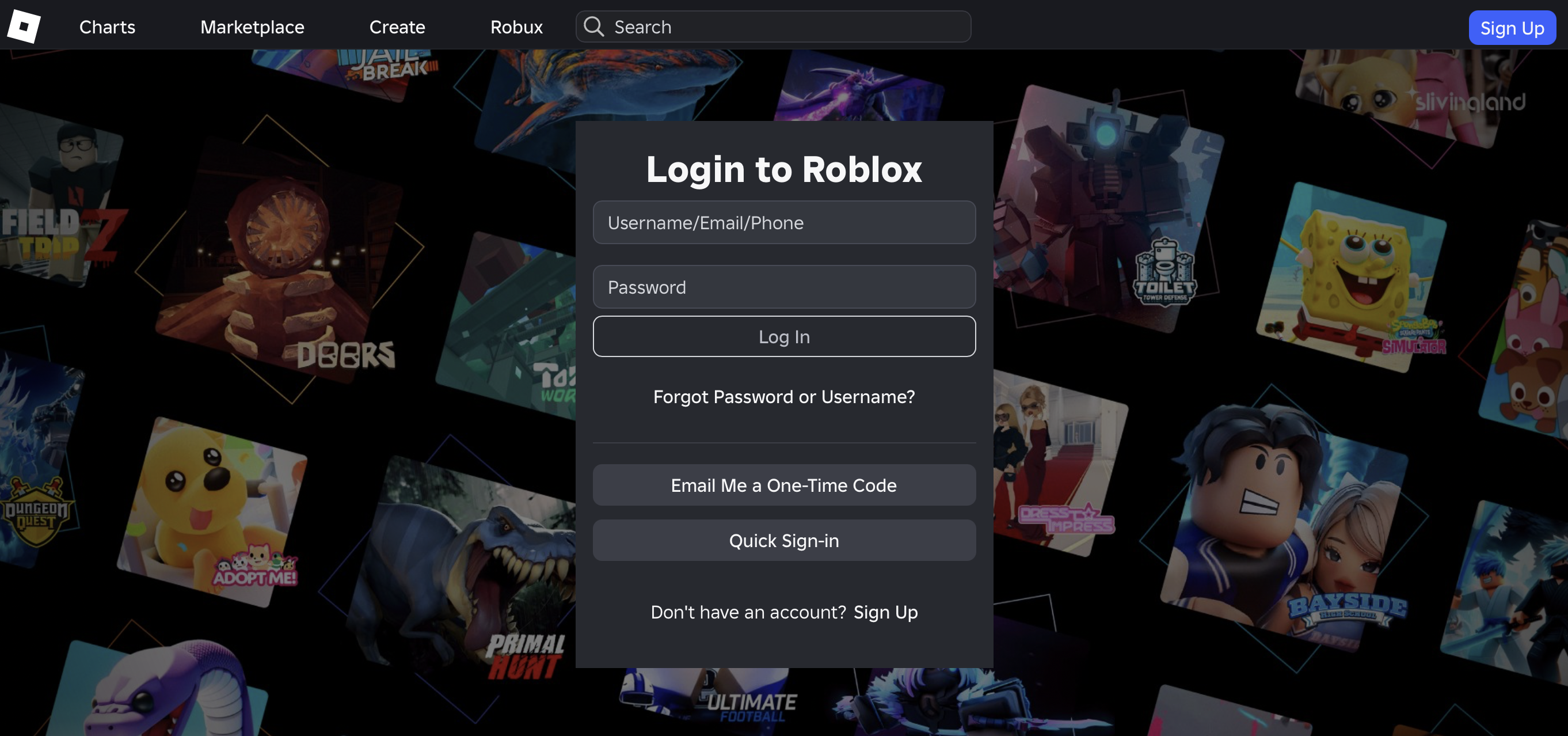
Step 1: Logging In Safely
- Go to Roblox.com or open the Roblox App on your device.
- Existing Account: Enter your username and password.
- New Account: Click "Sign Up" to register a fresh profile.
- Youth Centre Accounts (Model B): If using profiles provided by the youth centre, let your youth worker log in for you.
🛡️ Staff Naming: It is recommendable when Youth workers be easily identifiable as staff, but unique to their team. Do not just use "Youth Worker". Use the format: [Name]_[Organisation] (e.g., Sarah_NL_YouthWork or Thomas_BE_Centre). This helps international youth and partners recognise you instantly.
Step 2: Navigating the Main Hub
Once logged in, you will land on the main Roblox dashboard.
- The Top Bar: Gives you your main navigation points. While the Discover tab shows public games, we will use the Virtual Space, you need to be invited due to using a private space.
- The Sidebar: Displays your personal profile, groups, and settings.
- Accessing the Private Space: Because our international server is strictly private for safety, you will not see our virtual space automatically. The project administrator must invite your username first. If you do not see the project world on your dashboard, inform your youth worker immediately so the invite can be sent. When you have visited the Private Space before, you will see on the homepage 'Continue' and the space is perhaps still visible there.
Step 3: Launching the Space
Once the invite is accepted and the experience appears on your screen, click the Green Play Button to join your international peers on the live server.
🎮 How to Move Around in Roblox
To help by the Youth Work Center selected participants get started quickly, we have made a simple, printable guide for the buttons. Roblox works a bit differently depending on whether you are using a computer, phone, tablet, console, or VR headset.
This cheat sheet shows you exactly how to walk, jump, look around, and use your inventory on your specific device. It also includes clear pictures of the controllers so you can find your way around easily.
🛡️ Onboarding Safeguarding Protocol
To maintain a safe, non-formal environment, youth workers must complete these structural setup tasks during this activity:
- Check account privacy settings periodically. Roblox updates frequently, which can reset custom configurations.
- Manually adjust the account privacy settings in the Roblox backend. Restrict who can send direct private messages or chat publicly to ensure external players cannot contact the youth.
- Adding your local young people as "Connections" (friends) within your professional staff account is highly recommended. This allows you to easily invite them straight into secure private servers, bypassing public gaming spaces completely. More information about how to add trusted friends is here.
- Always defer to your own organisation's standard child protection and safeguarding procedures should any safety or behavioural concern arise.
Educational Focus: This step is a practical lesson in online safety. It teaches young people about digital boundaries, data privacy, and the real-world responsibilities of managing access to online spaces.

Resources
Get activity badge
VR space explorer Get this badge
This badge is for young people taking part in our international European youth exchange and supported with building the Virtual Reality World. It shows that they can set up their profile safely, find our private group, and connect positively with peers from other countries inside the virtual space.
This badge is part of the international exchange project "Co-Creating Virtual Youth Spaces in Roblox" and reviewed and signed off by your local Youth Worker.
Tasks
Task no.1
Evidence verified by: one activity organiser
What you need to do:
Step 1: Download and install the Roblox App on your device (PC, phone, or headset).
Step 2: Log into your account safely (or work with your youth worker to log into a youth centre-managed profile).
Step 3: Use your official invitation link to find our private project server.
Step 4: Enter the virtual space and introduce yourself to your international peers.
Step 5: Do some activities together with your peers in the Meeting hub.
Step 6: After gathering together as a group and receiving a go from the facilitator, start exploring the rest of the Virtual Cities of Learning VR space.
Organisers
Cities of Learning Network
Badge issuer recognized with

Awero not-for-profit organisation manages this platform and develops it together with leading educational organisations. The European Union's programme Erasmus+ granted co-funding for building the first version of this platform. Contact support@awero.org.
Platform
Change to another language: